

No monitoring tool can guarantee 100% accuracy—not even the ones with Boolean search.
When building advanced queries, Boolean can be cumbersome, ineffective, and prone to human error. One small mistake and your results can drastically change. But it’s still the most reliable search system. Is it?
There’s a simpler way to create effective queries. Here’s Prowly’s new take on how to quickly create monitoring searches that work.
Digital and social media—track them all in one place, within a single query, dashboard, or project.
How to create queries that collect relevant media mentions
The short answer is: check and refine.
There’s no going around it; your first monitoring searches will probably be pretty inaccurate. Instead of getting an initial spam tsunami, get a tool with a results preview built into the query creator.
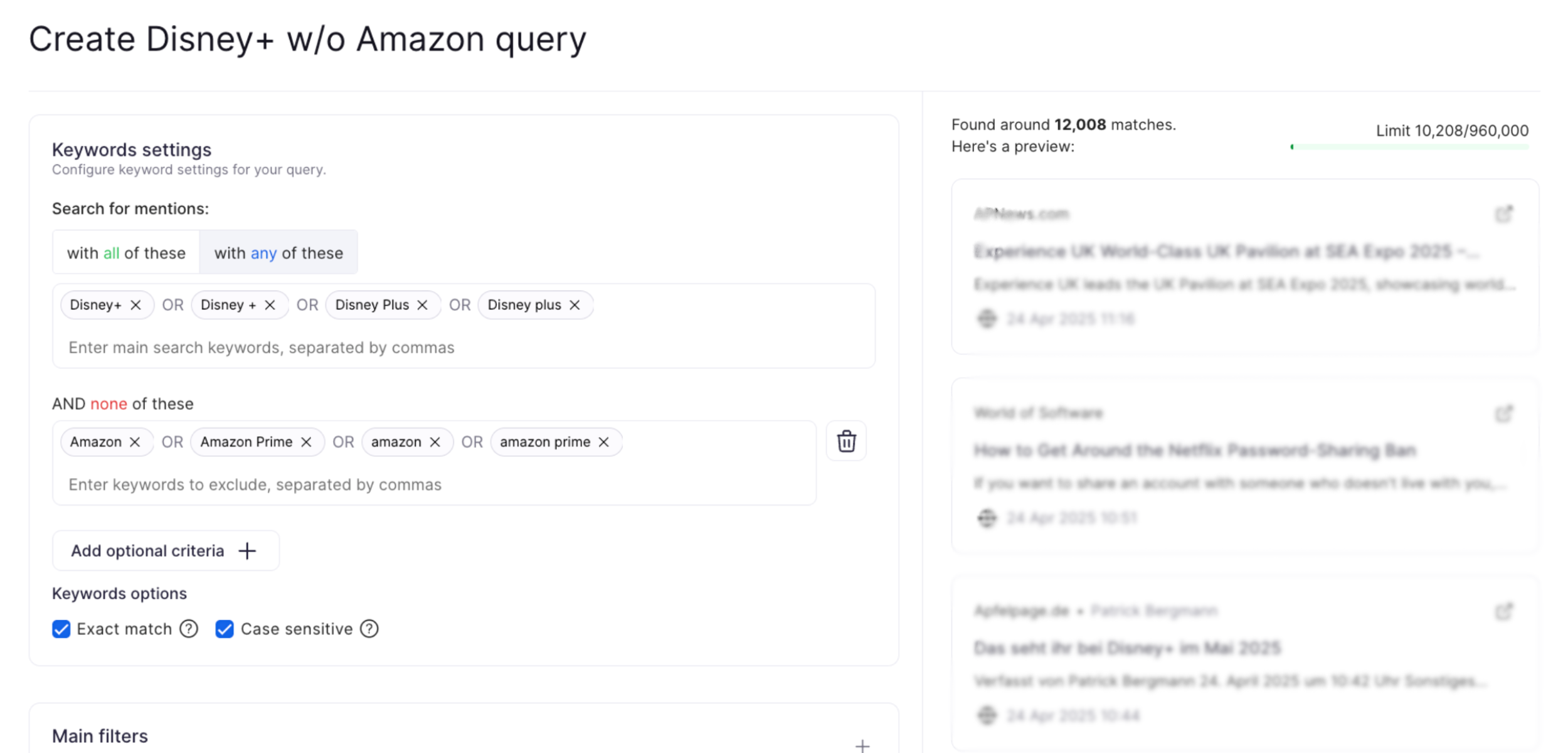
And, if you’ve already created a query and your news scans are collecting too many irrelevant results, it’s time to revise the search. Exclude some terms to narrow it down or add more possible keywords to expand.
A self-serve tool like Prowly lets you edit queries yourself without erasing previous results or valuable historical data.
Get the Enterprise plan to unlock unlimited query-building sessions with a dedicated expert.
But what’s the secret to building effective queries in Prowly? It’s just four steps.
Step 1. Choose your search type
There are five types of search queries in Prowly:
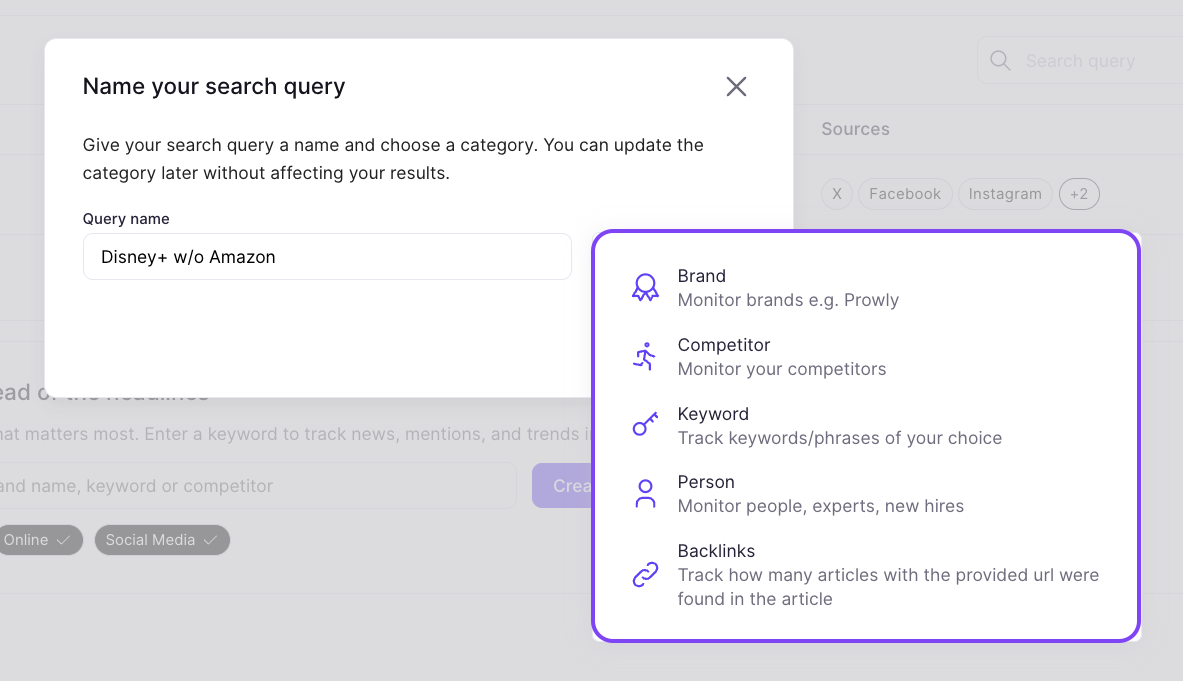
The first four operate in pretty much the same way: you enter one or more key phrases, include or exclude some terms, and voila. The labels Brand, Competitor, Person, or Keyword make it easier to differentiate between all your queries.
The Backlink query is a separate type, used only to track a single URL. This is useful if you’re focused on whether a particular link appears in the media.
If you'd like to add backlink tracking to your standard queries, this will be explained in Step 3: Filters.
Step 2. Operators and how to use them
Prowly’s query builder is based on three types of criteria:
- ALL (AND operator)
Used to find only the mentions that match all given keywords. This is a great way to hyper-focus your search on irreplaceable phrases.
- ANY (OR operator)
Finds all results with at least one of the keywords given. Use ANY if you want to expand your query or fill in the missing context.
- NONE (NOT operator)
Excludes all mentions containing any of your listed keywords. NONE helps filter out unwanted terms from your search.
The main criteria
They are the focus of your search. Here you can use either ALL or ANY. If you want to add more than one key phrase, you can type them in separately or paste all at once, separated by commas, and press Enter.
NOTE: If you’ve got keywords from old Boolean strings lying around, you can paste up to 15 phrases in one box (500 characters in total). Remember to replace all AND or OR operators with commas.
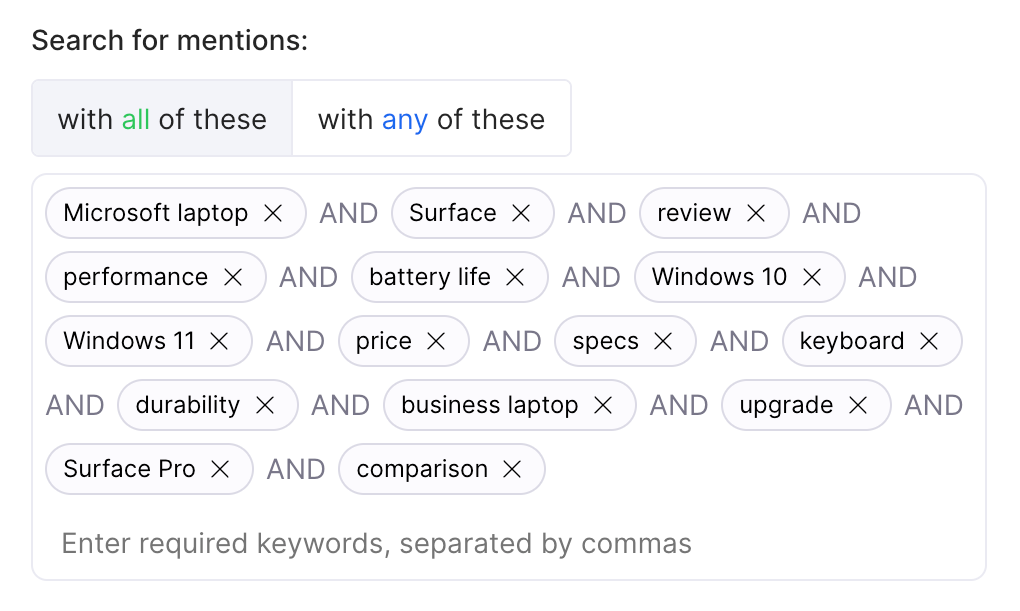
You modify the primary search by using…
Optional criteria
They are the additional modifiers for your query.
If your main criterion is ALL, then your optional criteria can be ANY and/or NONE.
If your main criterion is ANY, then your optional criteria can be ALL, ANY, and/or NONE.
What does that mean in practice?
Example 1. You’re monitoring the Prowly brand, but it’s often misspelled as Prowley. You want the results to contain mentions of AI. Your main and optional criteria will look something like this:
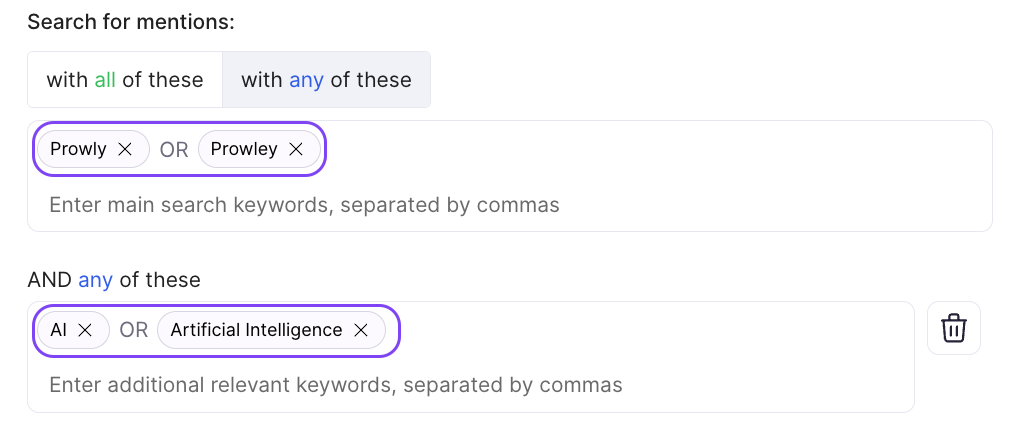
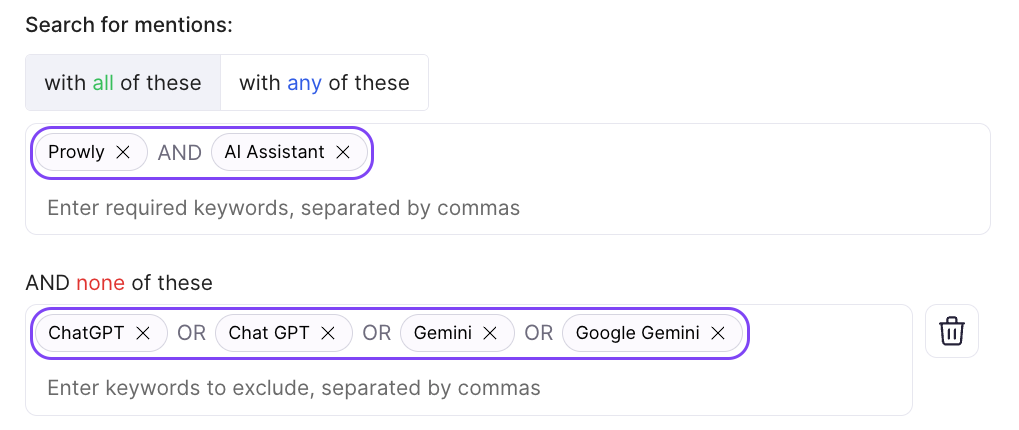
Example 2. You’re monitoring Prowly in the context of their top feature, AI Assistant. You want none of your results to mention ChatGPT or Gemini. This is what the search looks like:
Easy, isn’t it?
There are just two more elements you need to consider at this point. They’re your keyword options:
- Exact match—check this option if you don’t want to find any keyword variations. For example, a non-exact match is “Apples” or “Apple’s” instead of just “Apple”.
- Case sensitive—tick this box if you want your results to match the exact capitalization you used in your search. Example: the noun “apple” when you’re searching for the brand “Apple”.
Looks like we’ve got this step covered! What’s next?
Step 3. Filters
At this stage, you can select the countries, languages, and date ranges for the media you’re about to monitor. Depending on your chosen source, you can track up to one year of historical data.
The Main filters section is also where you can add a URL to track. What’s the difference between the Track backlinks filter and creating a Backlink query?
A Backlink query finds only mentions that include your chosen URL.
The Track backlinks filter means your results may or may not contain your given URL. To find the ones that do, you can filter them out in the mention browser or dashboard widget.
Step 4. Selecting your source
The last stage is to choose your media channel. At Prowly, you can monitor all sources in one place:
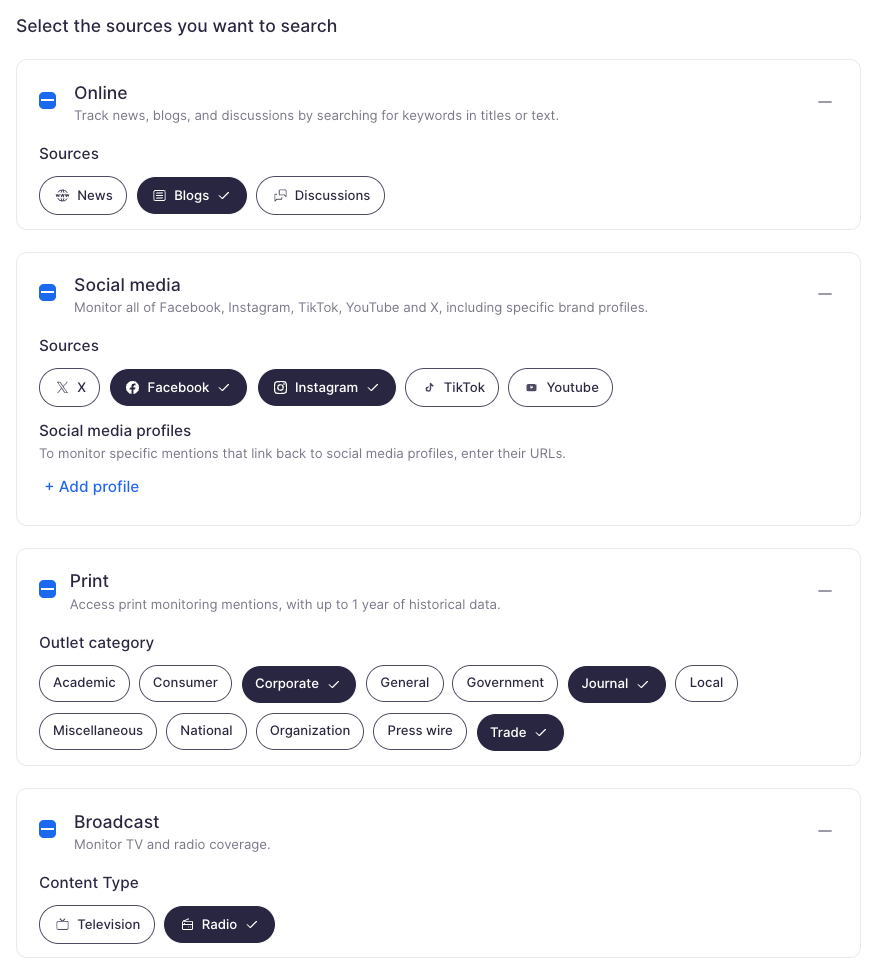
Once you’ve selected your sources, you can check the results preview. It shows you up to 15 random mentions so you can see if your query needs more finessing.
Now that you know the theory, how about some real-life scenarios?
How to build effective queries: use cases
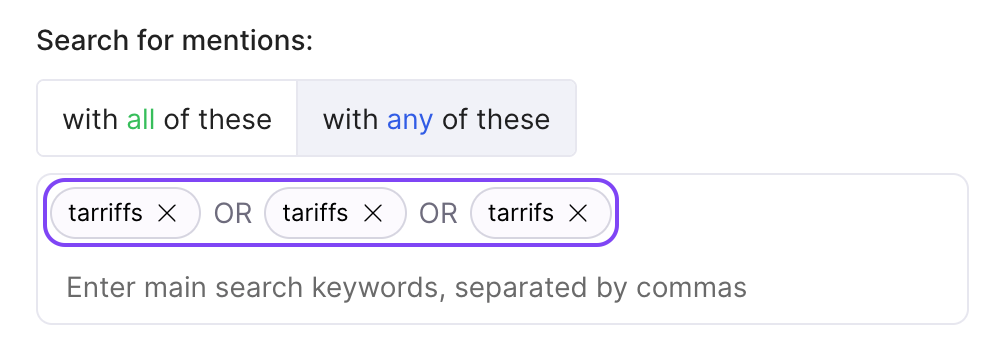
1. Your search term is often misspelled
Typos happen, even to the best of journalists.
Make sure the keyword you’re looking for isn’t commonly misspelled. If it is, use the ANY criterion so each version of the word pops up in your search.
2. Your brand goes by many names
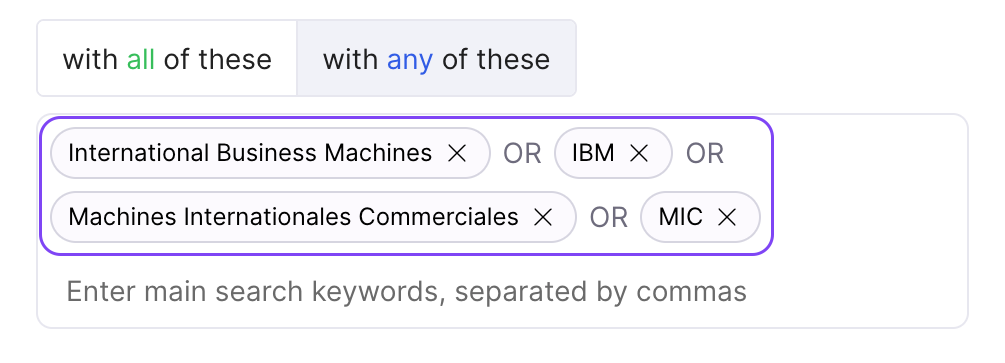
You no longer need to set up separate queries to gather all your brand mentions. Use ANY to find each variation of your brand’s name.
3. Putting keywords in context
Don’t want your query to exist in a vacuum? Use the main and additional criteria to narrow down your search to particular topics.
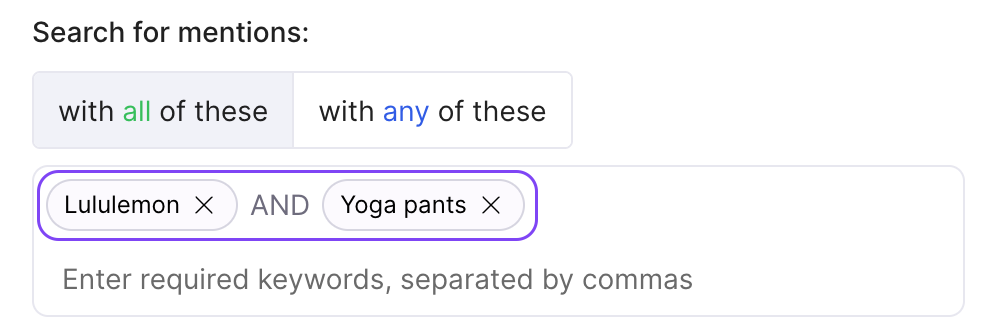
For example, if you’re looking for media narratives about your product launch, type in your brand name and product name in the ALL criterion.
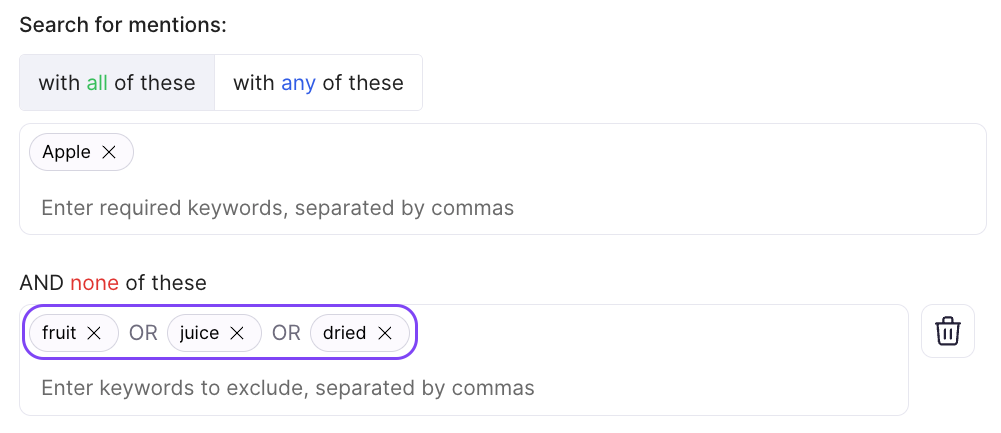
Or, if your tech brand is often conflated with a common fruit, use NONE to rule out all food-related associations.
4. A competitor’s name is an acronym and a common word
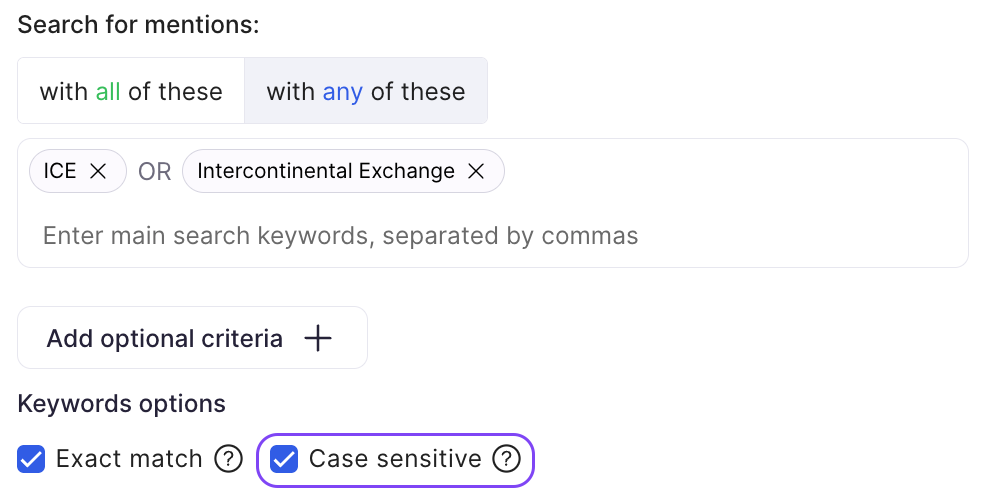
This situation is similar to use case 2, except that, next to the ANY criterion, you need to add the Case sensitive filter, too. It’ll make sure your brand name isn’t taken for a common noun.
5. Monitoring a brand and its spokespeople
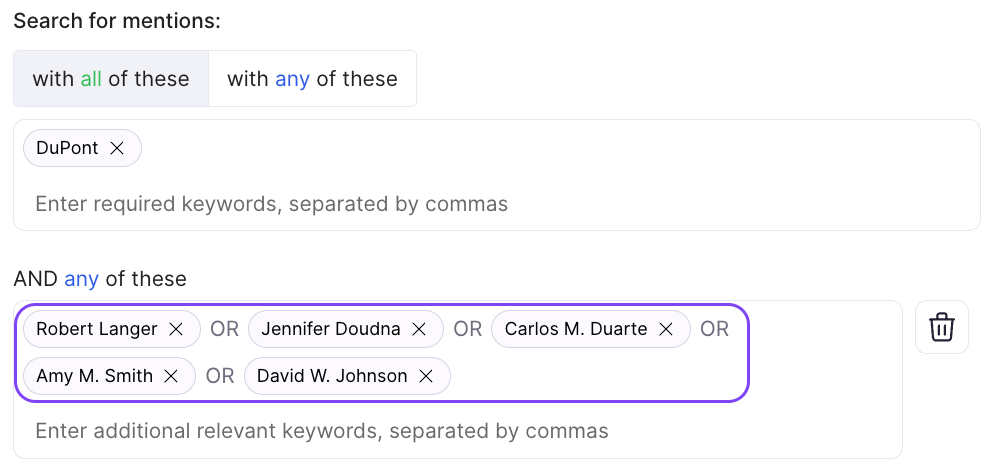
Has your brand launched a thought leadership campaign? Type your brand name(s) in the main criteria and add ANY as your additional criteria.
The query must find your brand’s name alongside at least one of these names.
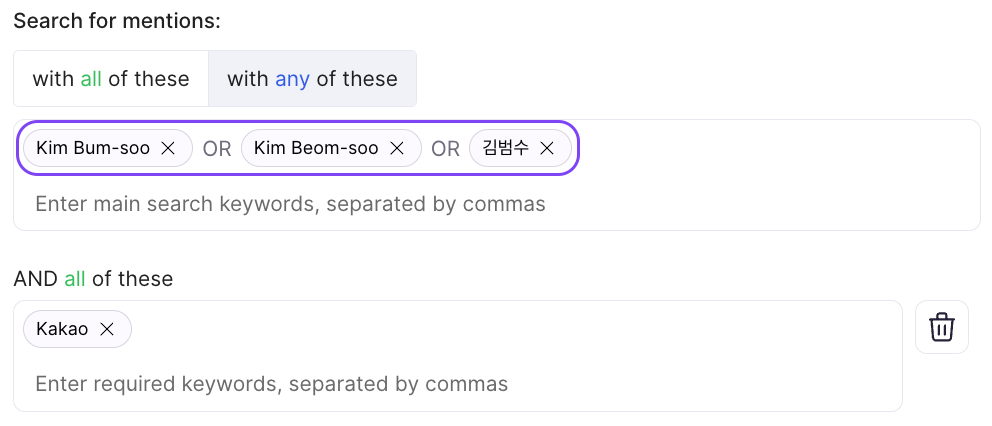
6. Various alphabets
Are you looking for your CEO’s name in more than one alphabet? Use ANY to make sure the query finds all possible spellings in the media outlets you’re interested in.
Bonus tip: how to do news scans
If you don't have the right workflow, they can take hours from your day. News scans are daily, weekly, or monthly updates about your media monitoring results.
What a news scan should contain
What do your stakeholders and clients look for in a news scan? The gist. The story. The message behind your coverage.
Rarely does anybody have the time to browse through dozens of mentions every day. A nice, succinct summary of the sentiment and overall narrative is what they're looking for.
How to automate news scans
Writing those summaries by hand takes way too much time.
In Prowly, you can schedule recurring monitoring digests with AI summarizing one or more of your queries. Just create a search query, go to Email notifications and create a custom monitoring digest.
Prowly's AI generates an overall summary and key takeaways from the mention scan.

See how simple media monitoring can be
Now that you’re all caught up, you can start creating new media monitoring searches. Building queries doesn’t have to be as complicated and exhausting as Boolean.